Binance Futures API Setup Guide
Create your API Keys on Binance Futures and connect them with your Thomas Boleto Discord Bot
Please make sure you complete your Binance account verification. Binance allows API key creation only for accounts that have completed their Basic and Intermediate Verification. If you haven't completed both of your account's Basic and Intermediate verification procedures, kindly go back to Binance and complete it. Once your account is verified, you will be able to complete the steps.
The following are the necessary steps to create an API key on the Binance exchange that can be used for trading using coins-futures (COIN-M and USD-M pairs). This guide is specifically for connecting to the Thomas Boleto Discord Trading Bot.
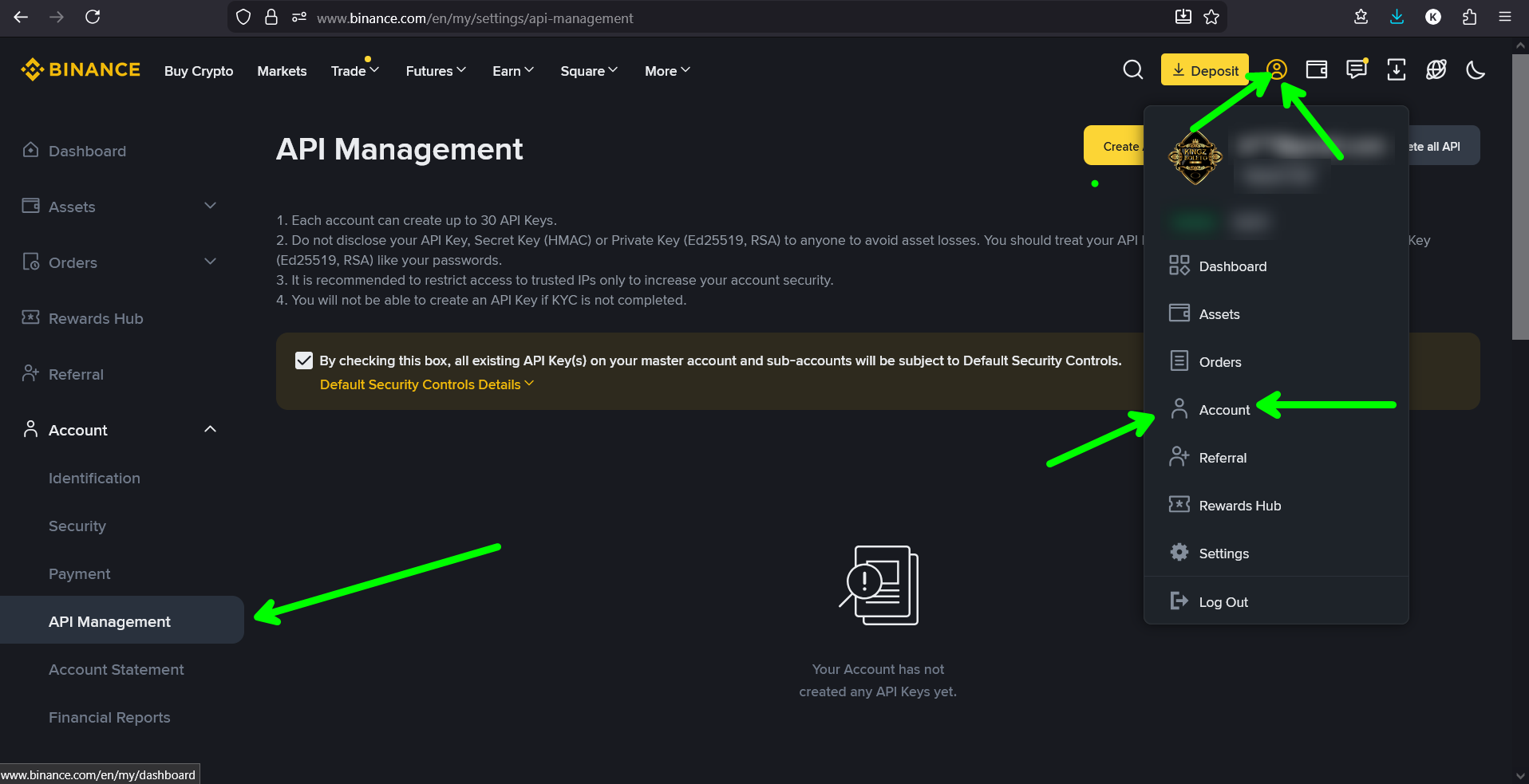
Navigate to API Management
Log into your Binance account and navigate to the API Management section. You can find this under your account settings or by searching for "API" in the Binance dashboard.
Click the Create API Button
Click on the "Create API" button. Depending on if you already have other APIs created, the input box and the button might appear in different parts of the screen.
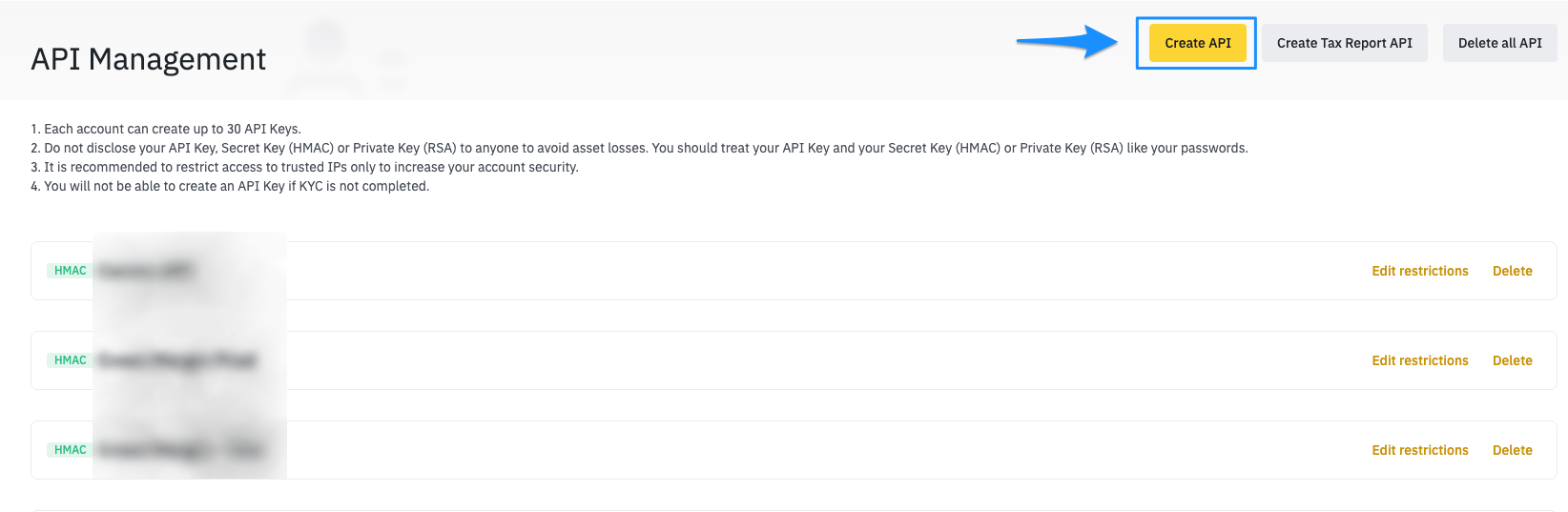
Note: If you already have existing API keys, they will be listed here. The "Create API" button is typically located in the top right corner.
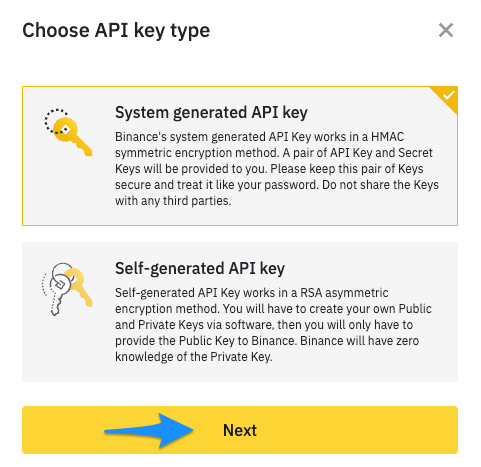
Select API Key Type
You will have the option to have Binance's system generate your API keys automatically (recommended for most users). Advanced users may choose to create their own keys manually.
Name Your API Key
Provide a descriptive name for your API key to easily identify its purpose. This helps you manage multiple keys and know which service is using each key.
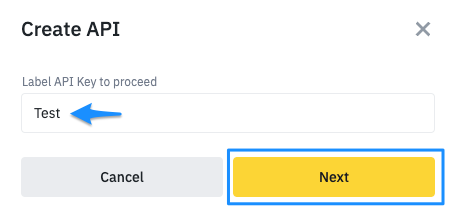
• ThomasBoleto-Discord-Bot
• Discord-Trading-Bot
• Futures-Trading-Bot
Complete Security Verification
After clicking on Next and completing the slide captcha, Binance will require additional verification through your email/phone and Google Authenticator app.
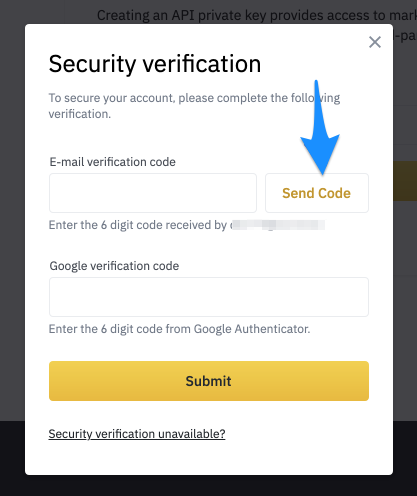
Important: For the Email/Phone number verification code to be sent to you, you will need to click the Send Code button as displayed in the screenshot.
After verification, Binance will display your API Key and Secret Key. The Secret Key is only shown ONCE. You must save both keys immediately in a secure location.
API Key:    hjasd87asd98as7d98a7sd...
Secret Key: KJHasd87asd9a8s7d98a7s9d8a7sd...

⚠️ Copy both to a secure location. The Secret Key will never be shown again.
Configure API Permissions & IP Restrictions
Your API is now created. Before connecting to the Discord bot, configure the permissions and IP restrictions as shown below.
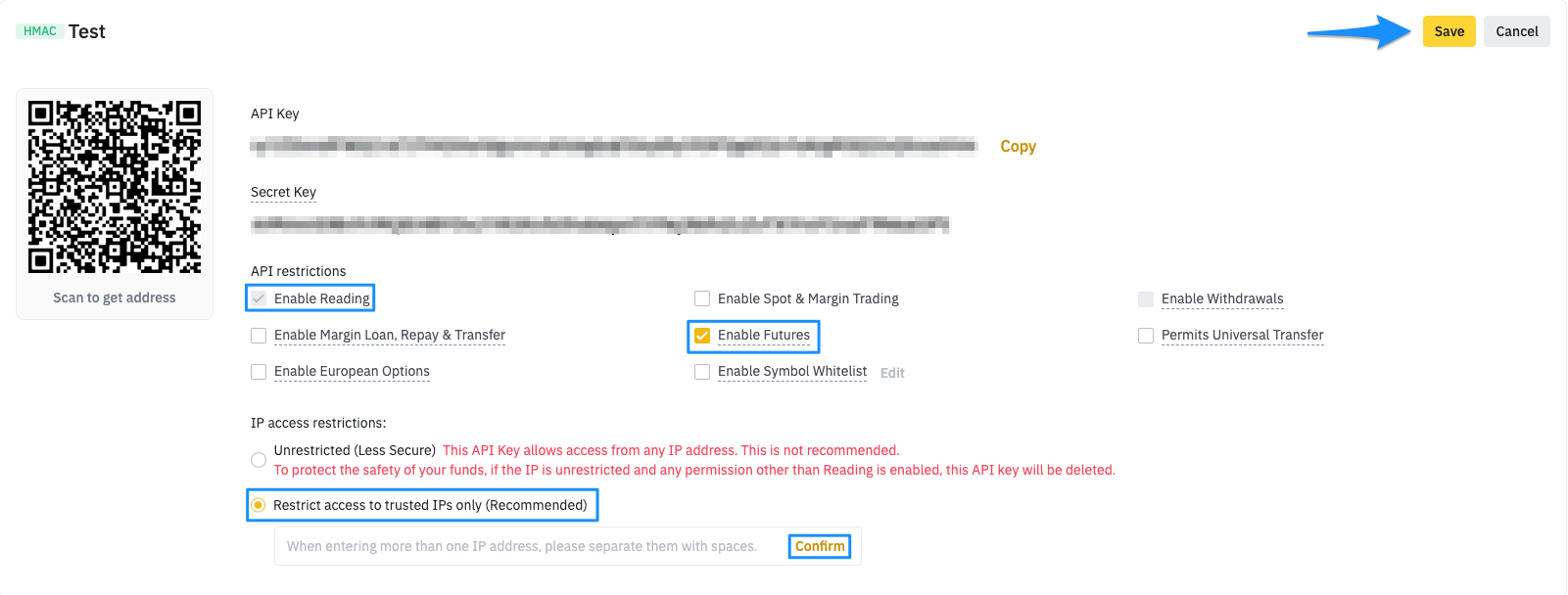
You must also add the Discord bot's IP addresses to the Binance list of trusted IPs. This is to enhance the safety of your API keys as well as ensure they will not expire after a short duration.
45.76.112.124
104.238.189.87
203.161.63.211
Without IP whitelisting, your API key may not work with the Discord bot
Why this is required: Binance may automatically disable API keys that don't have IP restrictions for security reasons.
Add Your API to Thomas Boleto Discord Bot
Now that your API key is created and configured, follow these steps to connect it to your Discord bot.
Connection Steps:
API_Key: [Copy from Binance]
Secret_Key: [Copy from Binance - shown only once]
🔒 Only enter these in the Discord bot PRIVATE setup
✅ There's a video show you everything in discord channel
👇 Picture Down show you in Private Direct message how to check using above command
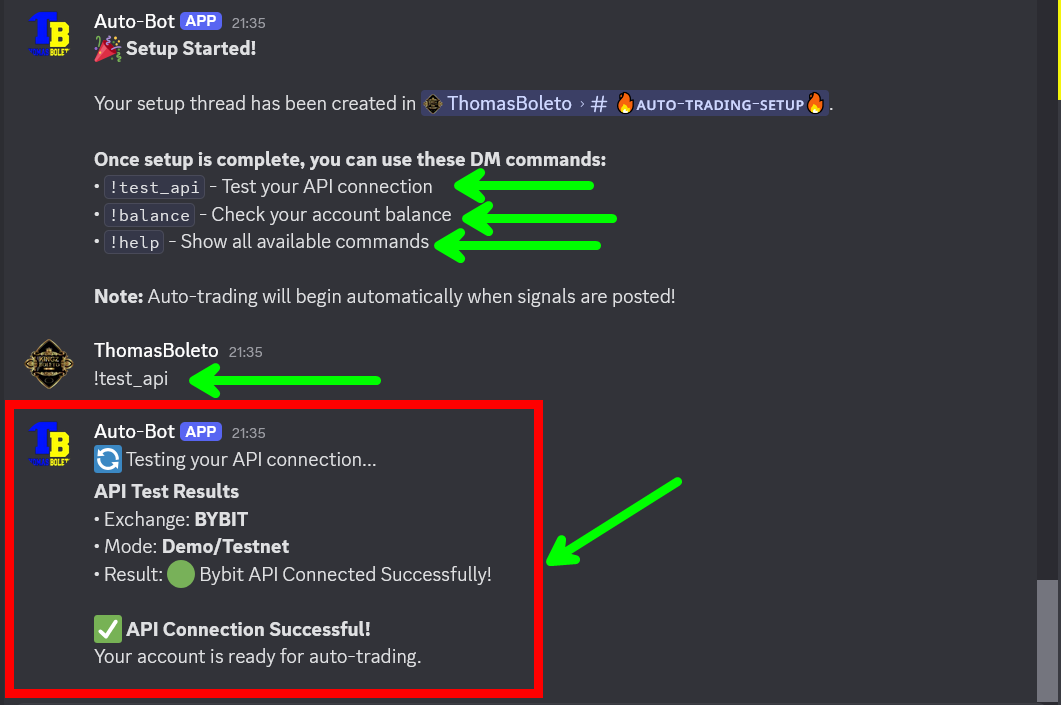
✅ Success: Once connected, you'll receive confirmation that your API keys have been validated and stored securely. The bot will now be able to execute trades and display your account information based on the permissions you granted.
⛔️ Important: there's tutorials video inside our Discord for each exchange plus even if you face any problem you can text me either in Telegram or Discord and we going to guide you more.
